Managing your login, 2FA, and users
Mobile Message uses two-factor authentication (2FA) to secure account access. You can also add additional users to your account at no extra cost, each with their own login and 2FA settings.
Main account login and 2FA
The main account holder is required to use SMS 2FA.
When logging in, a one-time code is sent by SMS to the mobile number listed in Settings > My Profile. This code must be entered to complete the login.
The mobile number on the main account must be a number you have access to whenever you log in. If you cannot receive SMS messages on this number, you will not be able to complete the login process.
Changing your password
To change your password while you are logged in, go to Settings > My Profile and click Change Password. Enter your current password and your new password, then save.
Changing your password signs you out of every other device or browser, so anyone else using the same login will need the new password to sign back in.
If you cannot log in and need to reset your password, use Forgot password? on the login page and follow the link in the email.
Not sure which email address you log in with?
Search your inboxes for an email from Mobile Message, such as an invoice, a low-balance alert or a login email. The address it went to is usually your login. You can try an address on the login page, which tells you if it isn't recognised. If you still can't find it, we can locate the account from your name, business name and the mobile number on the account.
Adding additional users
You can add additional users under Settings > Manage Users.
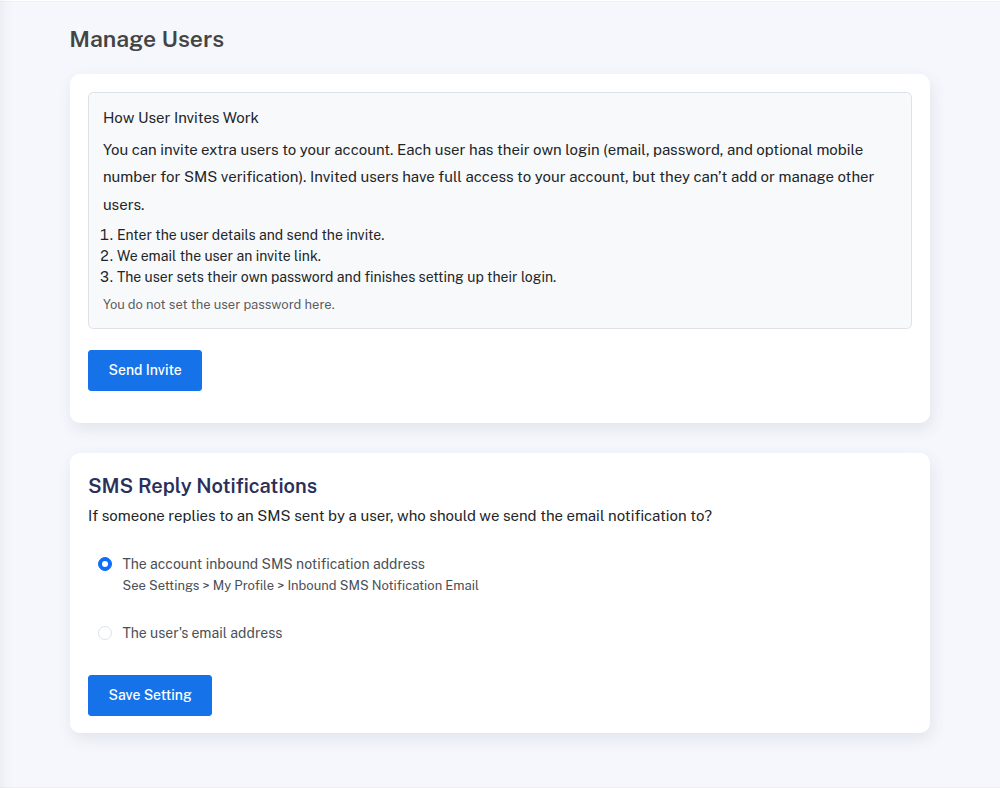
There is no extra cost to add users.
Each additional user has their own:
- login email address
- password
- 2FA method
This allows team members to access the account without sharing login details.
2FA options for additional users
Additional users can use either:
- SMS 2FA, or
- Email 2FA
If SMS 2FA is selected, you can set a different mobile number for each user. This number is used only for that user’s login security and does not affect sending or replies.
Creating a new user
To create a user, go to Settings > Manage Users and enter:
- the user’s name
- their email address
- a mobile phone number (only required if SMS 2FA is selected)
- their role (Admin or User) and, for a User, the permissions they should have
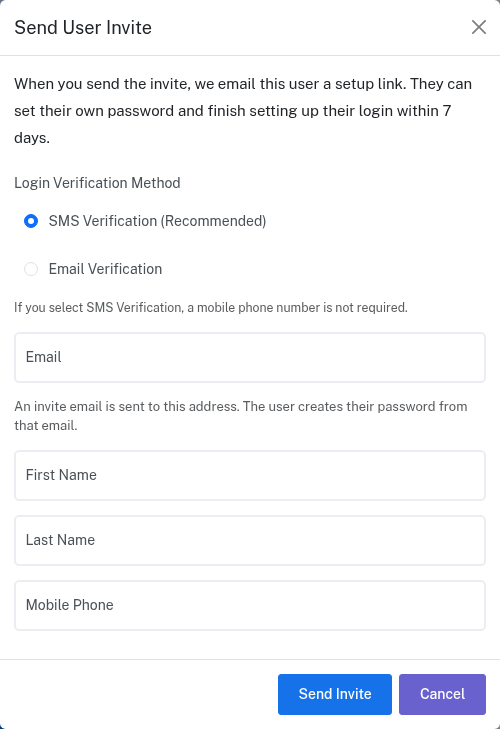
After saving, the user receives an email invitation. They complete their setup by:
- creating their own password
- confirming their login details
Once completed, they can log in immediately.
The link in the invitation email is valid for 30 days. If it expires before the user sets their password, the account owner or an Admin can send a fresh one by clicking Resend invite next to the user on the Manage Users page.
What access additional users have
Each additional user is either an Admin or a User.
Admins have full access to the account, including adding and managing other users. Only the account owner can make someone an Admin or change the main account password.
Users have access to whichever permissions you tick when you create or edit them:
- Send messages
- Messenger
- Contacts
- Templates
- History & Performance
- Billing
- Settings & integrations
All permissions are ticked by default, so a new user has full access unless you untick something. A user with Messenger but not Send messages can reply to conversations one at a time but cannot send bulk or scheduled messages. A user without Billing cannot buy credits or purchase a dedicated number.
Additional users cannot change the main account password or update the main account's contact or business details. These are restricted to the account owner.
Changes to a user's role or permissions take effect straight away. The user does not need to log in again.
Tracking who sent each message
The Message History page shows a "Sent by" column that identifies who or what sent each message. This includes sub-user emails, API usernames, integration names (e.g. "HubSpot", "3CX"), or "Account Owner" for messages sent by the main account holder. The "Sent by" information is also included in CSV and Excel exports.
Resetting a user’s password
If a user needs to reset their password, you can send them a password reset email from Settings > Manage Users.
Click the Reset Password button next to the user. They will receive an email with a link to set a new password. The link expires after 1 hour.
This option is available for active users only. Users can also reset their own password from the login page.
Managing or removing users
User access is managed from Settings > Manage Users.
From there, you can:
- add new users
- change a user’s role or permissions
- update a user’s 2FA method
- reset a user’s password
- remove a user who no longer needs access
Changes take effect immediately.
Best practice
For security and accountability:
- give each person their own user account
- avoid sharing login details
- use SMS 2FA whenever you can
This keeps your account secure while allowing your team to work efficiently.