Getting started with the API
The Mobile Message REST API lets you send SMS messages, manage contacts and lists, and automate workflows directly from your own applications. Whether you're integrating with a CRM, building an appointment reminder system, or automating notifications, the API gives you full programmatic access.
For the complete API reference, see the API documentation.
Creating an API key
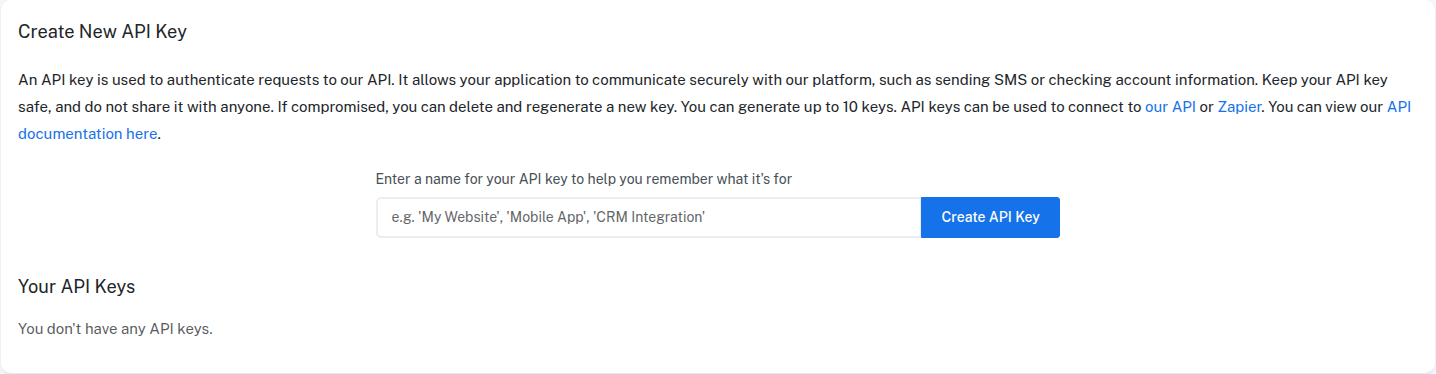
- Go to Settings > API
- Enter a label for your key (e.g. "My Website", "CRM Integration")
- Click Create API Key
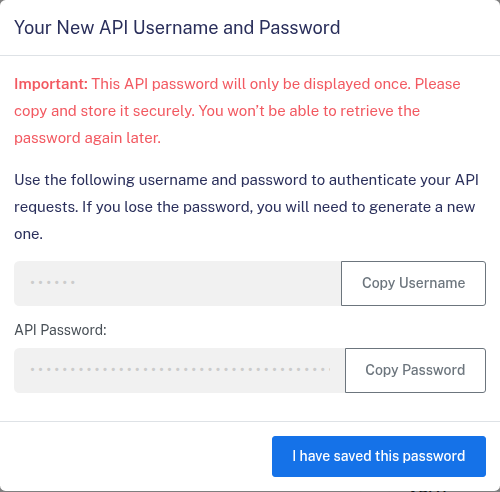
A modal will display your API Username and API Password. Copy and save these immediately — the password is only shown once and cannot be retrieved later.
Authentication
The API uses HTTP Basic authentication. Include your API username and password in the Authorization header of every request:
Authorization: Basic base64(username:password)
Most HTTP libraries handle this automatically when you provide credentials.
Your first request — sending an SMS
Here's a simple example using curl to send a single SMS:
curl -X POST https://api.mobilemessage.com.au/v1/messages \
  -u "YOUR_USERNAME:YOUR_PASSWORD" \
  -H "Content-Type: application/json" \
  -d '{
    "messages": [
      {
        "to": "0412345678",
        "message": "Hello from the API!",
        "sender": "YourBrand"
      }
    ]
  }'
The response includes a message_id for each message, which you can use to track delivery:
{
  "status": "complete",
  "total_cost": 1,
  "results": [
    {
      "status": "success",
      "to": "61412345678",
      "message_id": "abcd1234-efgh-5678-ijkl-9876543210mn",
      "cost": 1
    }
  ]
}
Key API features
- Send SMS — single or bulk messages, with personalisation variables and scheduling
- Contacts — create, update, and delete contacts
- Lists — manage contact lists and list membership
- Message history — retrieve sent message records and delivery statuses
- Unsubscribes — manage your opt-out list
- Senders — list available sender IDs and register new custom sender IDs with ACMA
- Webhooks — configure real-time notifications (see Setting up webhooks)
Managing API keys
You can create up to 10 API keys. Creating separate keys for each application makes it easy to rotate credentials or revoke access for a single integration without affecting others.
To delete a key, go to Settings > API and click Delete next to the key you want to remove. The key is revoked immediately.
No-code option
If you'd rather connect without writing code, Mobile Message integrates with Zapier — which lets you automate SMS from thousands of other apps.
For full endpoint details, parameters, and examples, see the API documentation.