Paying by bank transfer
If your organisation prefers to pay by bank transfer — for example, because you use purchase orders or don't have a corporate credit card — Mobile Message can issue a formal invoice with bank account details for payment.
How to request a bank transfer invoice
- Click Add Credits in the top bar
- Select the number of credits you'd like to purchase
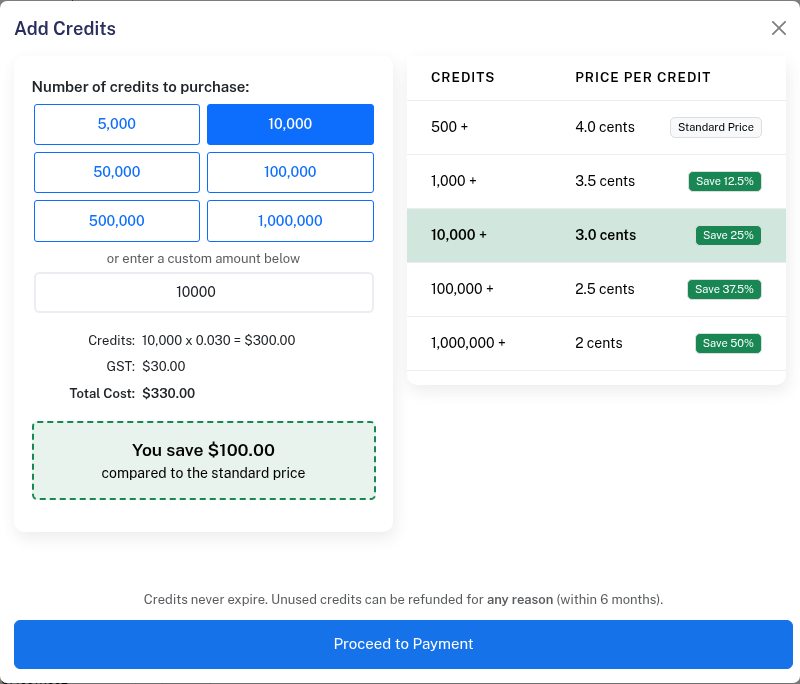
- Click Proceed to Payment
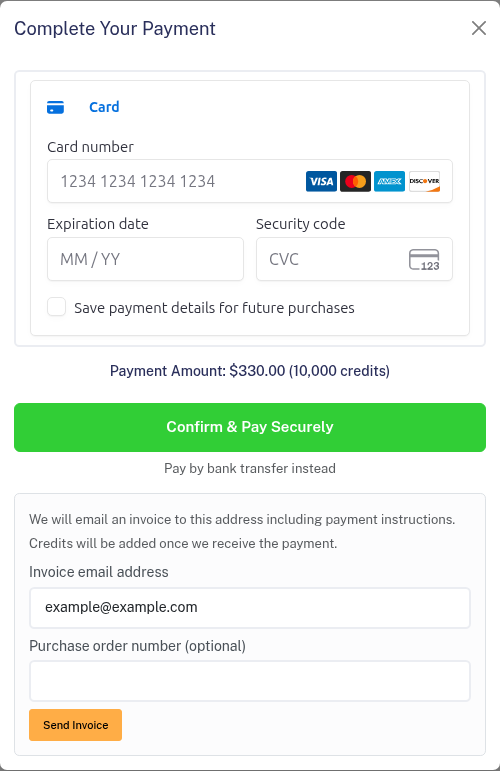
- On the payment screen, click Pay by bank transfer instead (below the card form)
- Enter your invoice email address and an optional purchase order number
- Click Send Invoice
What you receive
A PDF invoice is emailed immediately to the address you provided. The invoice includes:
- The amount due (including GST)
- Mobile Message's bank account details (BSB and account number)
- Your invoice number to use as the payment reference
- Your purchase order number (if provided)
When credits are applied
Credits are added to your account as soon as the payment funds are received and confirmed in our bank account. The time it takes for funds to reach our account depends on your bank and the transfer method you used — some transfers (for example, Osko/instant payments) arrive immediately, while others may take longer to clear.
If you make the payment using Osko (instant transfer), email hello@mobilemessage.com.au and we will process the payment faster for you.
Pricing
Bank transfer follows the same volume-based pricing as card payments. The more credits you purchase, the lower the per-credit cost — see the pricing table in the Add Credits screen.