How to cancel scheduled messages
Scheduled messages cannot be edited once they have been created. If you need to make a change, you’ll need to cancel the scheduled message and create it again with the updated content. When a scheduled message is cancelled, the SMS credits are refunded to your account immediately.
You can cancel scheduled messages at any time right up until the moment they are sent.
To cancel a scheduled message, go to Scheduled SMS from the menu. You’ll see a list of all messages that are waiting to be sent. To cancel a single message, click the red Cancel button next to that message.
You can also cancel scheduled messages in bulk. If the messages were sent to a contact list, select that list at the top of the page. If you only want to cancel certain messages, use the search option to filter the list first. If you don’t select a list or run a search, the action will apply to all scheduled messages.
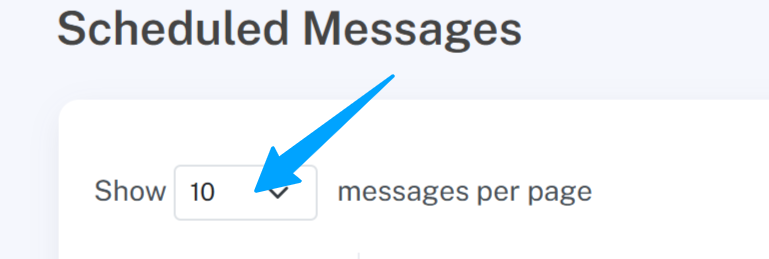
Next, change “Show 10 contacts per page” to “Show all contacts per page” and wait for the page to load.
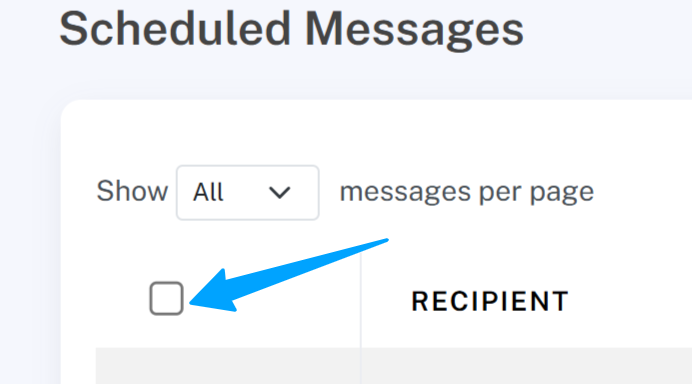
Click the checkbox at the top of the list to select all visible messages, then click the red “Cancel selected” button to cancel them in one step.