Previewing your message before sending
Before you send a message, you can preview exactly how it will look on the recipient's phone. This is especially useful when you're sending to a list with personalisation tags like {first_name} — the preview shows the actual values that will be substituted for each contact.
How to open the preview
- On the Send Messages page, add your recipients, choose a sender, and write your message
- Click Preview at the bottom of the page
What the preview shows
The preview displays your message inside a phone frame, showing:
- From — the sender ID or number your message will come from
- To — the recipient's name and number
- The full message text with all personalisation tags replaced with real contact data
- Characters and Credits per recipient — so you can confirm the cost before sending
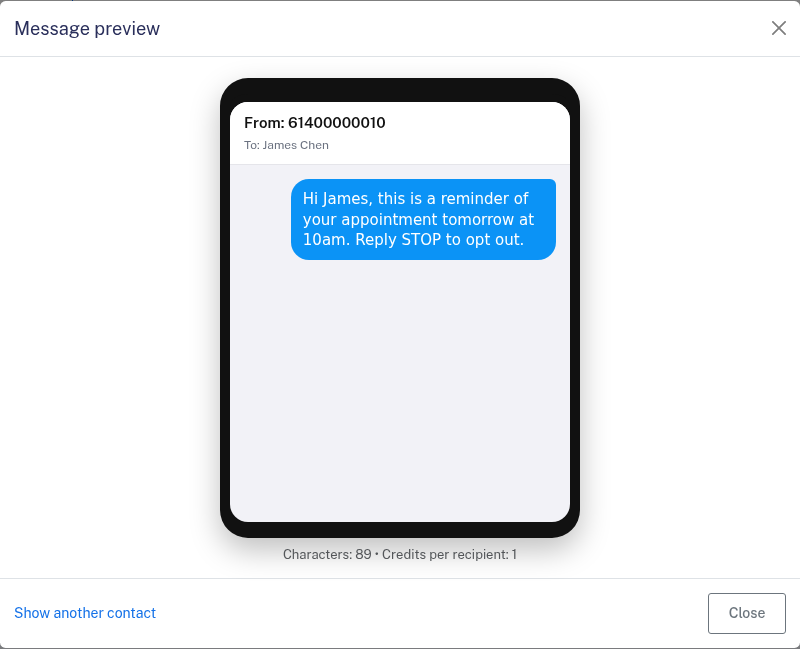
In the example above, the tag First Name has been replaced with "James" — the first name stored for that contact.
Checking multiple contacts
If you're sending to more than one recipient, click Show another contact at the bottom of the preview to cycle through different contacts. This lets you verify the message looks correct for contacts with different names, companies, or other details.
If a contact doesn't have a value for a tag (for example, no first name is stored), the tag is left blank in the message. Previewing multiple contacts helps you spot cases like this before sending.
After previewing
Close the preview to return to the compose screen. You can edit your message, change recipients, or go ahead and click Send Messages when you're happy with the result.
Preview is a quick final check — use it before every bulk send to avoid surprises.