How to add a custom sender ID (business name)
A custom sender ID displays your business name instead of a phone number when recipients receive your message — for example, "AcmeCo" or "DrSmith". This makes your messages instantly recognisable and professional.
Rules and restrictions
Custom sender IDs must follow these rules:
- 1–11 characters, letters and numbers only (spaces allowed)
- Must contain at least one letter (cannot be numbers only)
- One-way only — recipients cannot reply to a custom sender ID. If you need two-way messaging, use a dedicated number instead.
ACMA registration requirement
All custom sender IDs must be registered with the ACMA (Australian Communications and Media Authority) to send SMS in Australia. Mobile Message guides you through this registration as part of the setup process.
Your sender ID must contain your:
- Registered business name or company name
- A trademark you've registered, or
- A
.audomain name you own
Abbreviations and shortened versions are fine — for example, "AcmeCo" for "Acme Company Pty Ltd".
How to add a custom sender ID
- Go to Settings > Sender IDs
- Click Add Custom Sender ID
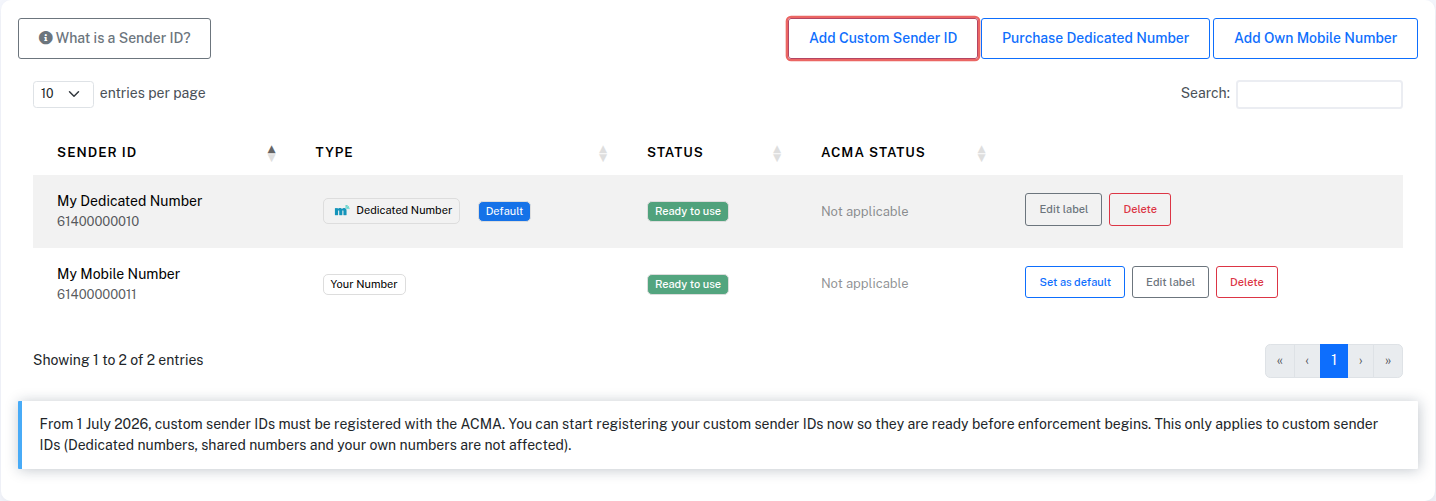
- You'll first see an overview of the ACMA registration requirements — click Continue
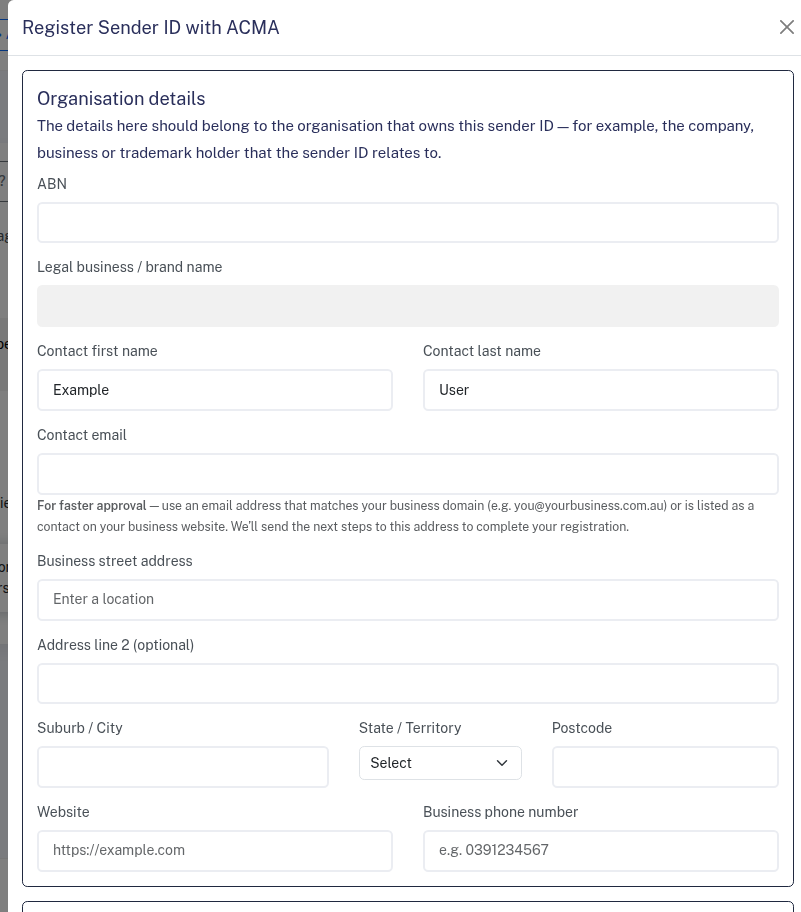
- Complete the registration form with your organisation details:
- ABN and legal business/brand name
- Contact name and email — use a business domain email for faster approval
- Business address, website, and phone number — the website is required by the ACMA register, but it doesn't have to be a dedicated website. If you don't have one, enter the address of an official online page for your business, such as a Facebook or Instagram business page, a LinkedIn company page, a Google Business Profile listing, or an industry directory listing. It must start with https://
- Enter your Sender ID (up to 11 characters) and select what it contains (company name, business name, trademark, or domain)
- Confirm you're authorised to register the sender ID
- Click Submit for ACMA registration
Review and verification
After you submit the form, the Mobile Message team will usually complete the initial review within one hour during business hours (it may take a little longer after hours). Once the initial review is complete, you'll need to verify your connection to the business and confirm your identity.
Depending on your situation, verification will happen in one of two ways:
- Mobile Message fast-track verification — our certified fast-track verification flow lets you complete verification in about 5–10 minutes, directly through Mobile Message
- ACMA Assist portal — in some cases you may be directed to the government's ACMA Assist portal, where you'll verify your identity using the myID app and confirm the registration yourself. See How to confirm a sender ID in ACMA Assist for step-by-step instructions.
You'll receive an email with instructions on which steps you need to take. The verification step typically takes only a few minutes once you receive the email, and our fast-track verification flow often completes in 5–10 minutes.
Once verification is complete, your sender ID is registered in the ACMA Sender ID Register and a 24-hour readiness period begins, during which the mobile networks update their systems so they'll accept it.
After approval
The 24-hour readiness period starts once you've completed the final step — either confirming in ACMA Assist or finishing our fast-track ID process. During this time the mobile networks update their systems to accept your sender ID.
Your custom sender ID won't appear in the From dropdown on the Send Messages page until this 24-hour period is complete. Once it's finished, your sender ID appears in the dropdown and you can select it just like any other sender.
For more detail, see How long until my custom sender ID is ready to use?.
Editing your sender ID
You can make minor capitalisation changes to your sender ID at any time — for example, changing "COMPANY" to "Company". This does not affect your ACMA registration.
To edit the capitalisation:
- Go to Settings > Sender IDs
- Find your sender ID in the list and click Edit
- Adjust the upper/lowercase letters and click Save
If you need to change the actual letters or create a different sender ID, you'll need to submit a new sender ID application.
Using an existing sender ID from another provider
If you already have a custom sender ID registered in the ACMA Sender ID Register through another SMS provider, you can use that same sender ID with Mobile Message. You don't need to notify or cancel with your current provider first — a sender ID can be registered with more than one provider at the same time, so your existing service keeps working while you switch.
The process is the same as registering a new sender ID:
- Go to Settings > Sender IDs
- Click Add Custom Sender ID and complete the registration form
- Mobile Message will link your application to the existing registration in the ACMA Sender ID Register
- You will then need to log in to ACMA Assist and approve the connection — this is a quick process that takes about 2 minutes. See How to confirm a sender ID in ACMA Assist for step-by-step instructions.
Because your sender ID is already registered, there's no 24-hour readiness period — the mobile networks already accept it from the original registration. Once you approve the connection in ACMA Assist, it appears in the From dropdown ready to use.
Registering via the API
If you need to register sender IDs programmatically — for example, if you're a marketing agency or CRM platform managing multiple clients — you can use the ACMA Registration API endpoint instead of the web form.
For an overview of all sender options, see Choosing a sender — what are the options?. For more on the ACMA registration, see SMS Sender ID Register Details.