How Unsubscribes Work
Mobile Message includes built-in unsubscribe handling to help you stay compliant with Australian spam laws. When a recipient replies with the word STOP, the platform automatically blocks further messages to that number.
Adding an opt-out message
On the Send Messages page, you can add an opt-out option to your message by clicking Insert Opt-Out Message.

The opt-out message that is inserted depends on the sender you are using.
Opt-out message by sender type
Dedicated number or shared number senders
If your message is sent from a dedicated number or a shared number, the following opt-out message is inserted:
Opt out: Reply Stop
Recipients can reply with “STOP” to unsubscribe.
Custom senders or your own number
If your message is sent from a custom sender or your own number, the following opt-out message is inserted:
OptOut mb.st/xxxxxx
This provides a link recipients can use to opt out. Your link will be different to this example, as it's specific to your account.
Important: STOP replies to your own number are not processed in-platform. When you send from your own mobile number, if a recipient replies with STOP, that reply goes back to your phone — it is not received or processed by Mobile Message. The platform only records an opt-out when the recipient uses your account's opt-out link (mb.st/xxxxxx). For this reason, always use the link-based opt-out when sending from your own number or a custom sender ID.
Using your own opt-out wording
The default opt-out messages inserted by the Insert Opt-Out Message button cannot be changed. If you would like different wording, you can type your own opt-out message directly into your message instead of using the button.
Our system will recognise any reply starting with the word STOP as an unsubscribe, so you are free to phrase the opt-out instruction however you like — as long as you ask the recipient to reply with STOP.
If you are sending from a custom sender ID or your own number, recipients cannot reply directly to the message. In this case, you should direct them to the opt-out link for your account (e.g. mb.st/xxxxxx) rather than asking them to reply STOP. To find your account's opt-out link, click the i icon next to Insert Opt-Out Message on the Send Messages page — this will display the URL to use.
Opt-out handling via the API
When sending messages via the API, opt-out text is not added automatically — you must include it yourself.
The easiest way is to use the {optout} token in your message body. Mobile Message will replace {optout} with the correct opt-out text for the sender type you are using:
- Dedicated or shared number: replaced with
Opt out: Reply Stop - Custom sender or your own number: replaced with
OptOut mb.st/xxxxxx(your account's opt-out link)
For example: Hi {first_name}, your appointment is confirmed.{optout}
The {optout} token is supported on both the /v1/messages and /v1/list-send endpoints. You can also type the opt-out text manually instead of using the token. For full details and examples, see How do I insert an opt-out message with the API?
Finding your account's opt-out link
To find the opt-out link for your account, go to the Send Messages page and click the i icon next to Insert Opt-Out Message. This will display your account's unique opt-out URL (e.g. mb.st/xxxxxx), which you can use in your messages — both via the web interface and the API.
What happens when someone unsubscribes
When a recipient unsubscribes:
- Their number is immediately added to your unsubscribe list
- Future marketing messages to that number are automatically blocked by default
- They are automatically removed from any contact lists in your account
- Any scheduled or pending messages to that number are automatically cancelled
- This helps ensure compliance with Australian spam laws
You do not need to take any action when someone unsubscribes by replying STOP.
Replying to someone who has unsubscribed
If someone who has unsubscribed texts you, for example to ask about an order, you can still reply in the Messenger. Their conversation shows a warning above the reply box that the number has unsubscribed, and your reply is sent as normal. Do not send marketing messages to someone who has unsubscribed.
They stay on your unsubscribe list, so your sends from the Send Messages page still skip them. If they have asked to receive your messages again, click Re-subscribe in the warning to take them off the list.
What counts as an automatic opt-out
Automatic opt-out processing only applies when the recipient's reply starts with the word STOP. These replies are processed automatically — the number is added to your unsubscribe list and blocked from future sends without any action on your part. For example, all of the following would be accepted as an unsubscribe:
- "STOP"
- "STOP!!"
- "STOP STOP STOP"
- "Stop please"
Replies that do not start with STOP — for example, "please remove me", "can you take me off this list?", or other free-text messages — are treated as normal inbound messages and will not be added to your unsubscribe list automatically.
If a recipient asks to be removed without using the word STOP, you will need to add their number to your unsubscribe list manually. Go to Contacts > Unsubscribes and use Bulk Manage Numbers (which also works for single numbers) to add them. Once added, their number will be blocked from future marketing sends and removed from your contact lists immediately.
Own number and custom sender reminder: If you send from your own mobile number or a custom sender ID, recipients cannot reply directly to the platform. In these cases, the recipient must use your account's opt-out link (mb.st/xxxxxx) for Mobile Message to record the unsubscribe. See Two-way SMS basics — how replies work for more on how replies are handled by sender type.
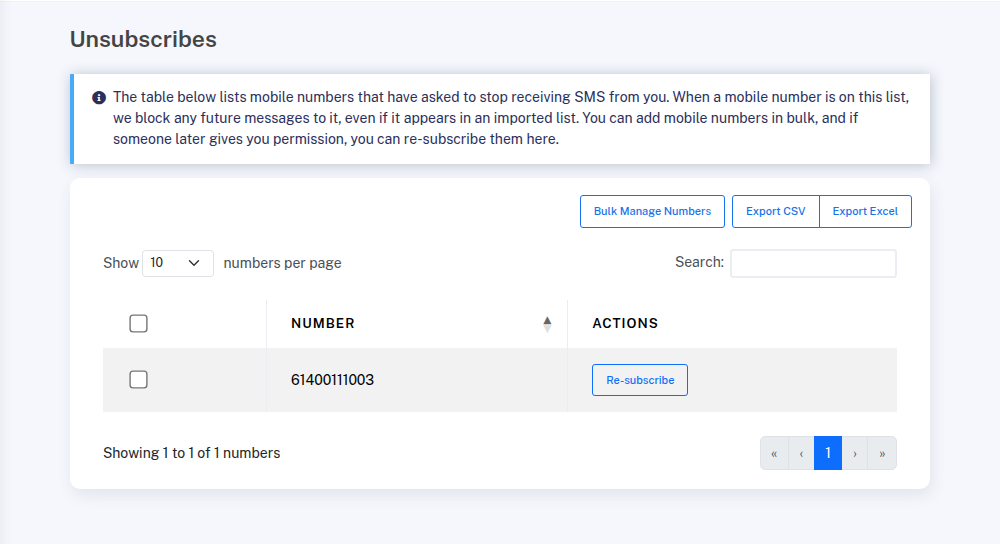
Unsubscribe list
All unsubscribed numbers are stored in a dedicated list in your account.
You can view this list by going to:
Contacts > Unsubscribes
This list shows all numbers that have opted out of receiving messages from your account.
Tip: The Contacts > Unsubscribes page shows all opted-out numbers across your entire account. If you want to see which numbers unsubscribed from a specific campaign, go to History and filter by Unsubscribes status instead. You can also narrow by date range and export the results. See Viewing and exporting message history for details.
Removing someone from the unsubscribe list
If needed, you can remove a number from the unsubscribe list. This may be appropriate if the recipient has explicitly asked to be re-subscribed, or you have obtained fresh consent to send messages to them. Once removed, you will be able to send messages to that number again.
To remove one or more numbers, you can click the Re-Subscribe button next to their number. You can also use the Bulk Manage Numbers button on the Contacts > Unsubscribes page — it works for single numbers as well as bulk removals.
Adding or removing numbers in bulk
You can manually add or remove numbers from your unsubscribe list using the Bulk Manage Numbers button. This is useful if you are moving from another SMS provider, or need to re-subscribe a group of contacts.
To add or remove numbers:
- Go to Contacts > Unsubscribes
- Click Bulk Manage Numbers
- Paste the phone numbers (one per line, or comma-separated)
- Select either Add numbers to Unsubscribes or Remove numbers from Unsubscribes
- Confirm the action
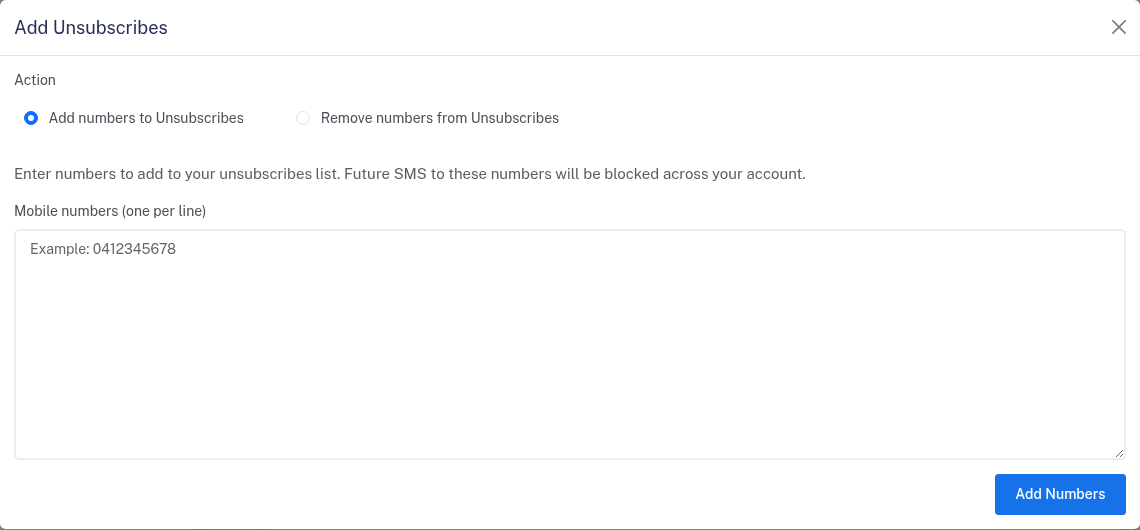
Numbers added this way will be blocked from receiving messages immediately. Numbers removed will be unblocked and can be messaged again.
Re-subscribing a single contact
If one individual has given you fresh consent, you can re-subscribe them directly from the unsubscribe list without using the bulk tool. Go to Contacts > Unsubscribes, find the number in the table, and click Re-subscribe. The number is removed from your unsubscribe list immediately and can be messaged again.
Exporting your unsubscribe list
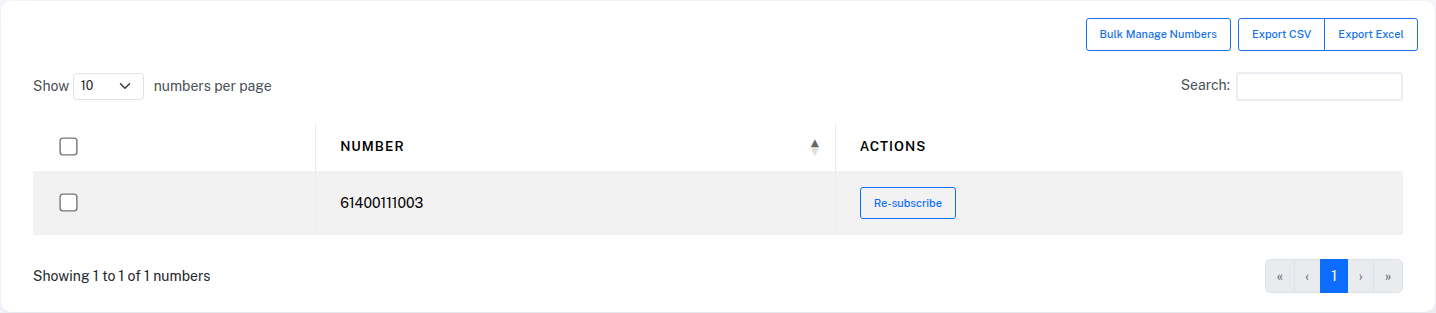
You can download your full unsubscribe list at any time. On the Contacts > Unsubscribes page, click Export CSV or Export Excel. The export contains all opted-out numbers and is useful for keeping your CRM or other platforms in sync with your Mobile Message unsubscribe list.
Blocking behaviour
When a number is on your unsubscribe list, standard sends are blocked:
- You cannot send standard messages to that number
- Messages will be blocked automatically
- Importing the number again will not override the block
- Manually entering the number will not bypass the block for standard sends
- If a message was scheduled before the unsubscribe occurred, it will be automatically cancelled and will not be sent.
For standard marketing sends, it is not possible to send a message to a number while it remains on the unsubscribe list.
Sending to unsubscribed numbers (transactional messages)
In some cases you may need to send a message to a number that is on your unsubscribe list — for example, an order confirmation, OTP, or appointment reminder that the recipient is expecting. These are called transactional messages, and they can be sent even if the recipient previously opted out of marketing messages.
To send to unsubscribed numbers, use the Ignore unsubscribes option:
- Web (Send Messages page): Open Advanced Options and enable Ignore unsubscribes list for this send
- API: Include
ignore_unsubscribes: truein your send request
Important: Never use this option to send marketing or promotional content to someone who has opted out of your messages. That would breach Australian spam law.
Managing opt-outs in your own system
If you run your own platform or CRM that sends messages for several businesses, you can manage opt-outs on your side instead of relying on your Mobile Message unsubscribe list. This lets a STOP from a customer of one business apply only to that business.
To set this up through the API:
- Send with
ignore_unsubscribes: true, so your Mobile Message unsubscribe list doesn't block the send - Set
custom_refon each message to a value that identifies the business, for examplebusiness-42 - When a recipient replies STOP or uses the opt-out link, your inbound webhook receives an event with
type: "unsubscribe"and your reference inoriginal_custom_ref. Record the opt-out against that business in your system
The reference comes from the most recent message we sent to that person. For a STOP reply, that is the most recent message from the number they replied to. For the opt-out link, it is the most recent message from your account. If several businesses message the same person, give each business its own dedicated number and ask recipients to reply STOP, so each opt-out is matched to the right business.
Your system is then responsible for making sure no one who has opted out of a business receives marketing from that business again.
Proper unsubscribe handling protects your business and ensures compliance. Mobile Message enforces unsubscribe rules automatically so you can focus on messaging, knowing opt-outs are respected at all times.